
Install the tracker with a coding agent
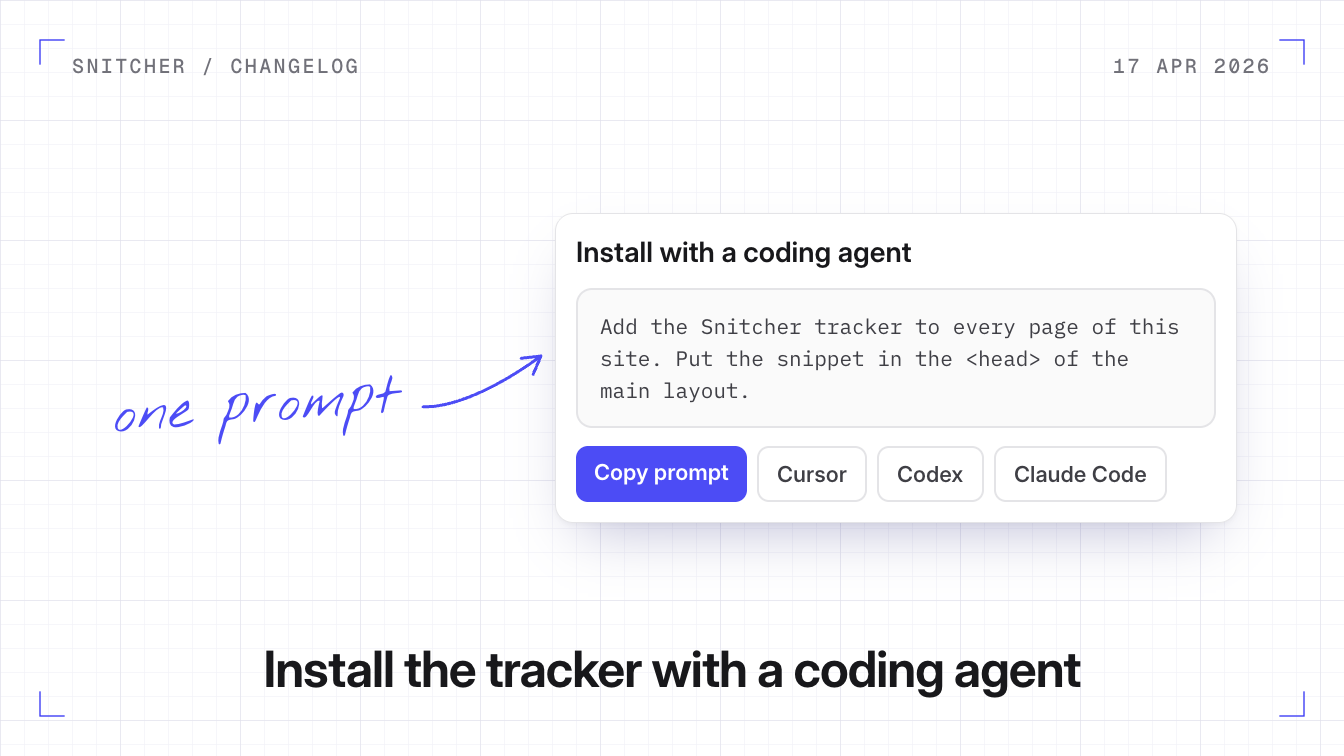
You can now hand the tracker install to a coding agent. Snitcher’s install step gives you a ready-made prompt to copy, or opens it straight in Cursor, Codex or Claude Code.
Why it matters
If your site’s code is already open in a coding agent, installing Snitcher takes one prompt.
Also new in the install step
- Clearer status. The Disconnected banner now reads No recent visitors. It still appears after 60 minutes without visits, which on a quiet site usually means the tracker is fine.
- Quicker confirmation. Snitcher confirms your installation as soon as the snippet first fires.
Install with an agent
- Go to Settings → Tracker → Installation, or open the install step if you’ve just signed up.
- Choose the coding agent option, then copy the prompt or open it in Cursor, Codex or Claude Code.
- Let the agent add the snippet to your site, then publish the change. Snitcher confirms the installation once the snippet fires.
How to install the Snitcher tracker covers the other ways to install.